
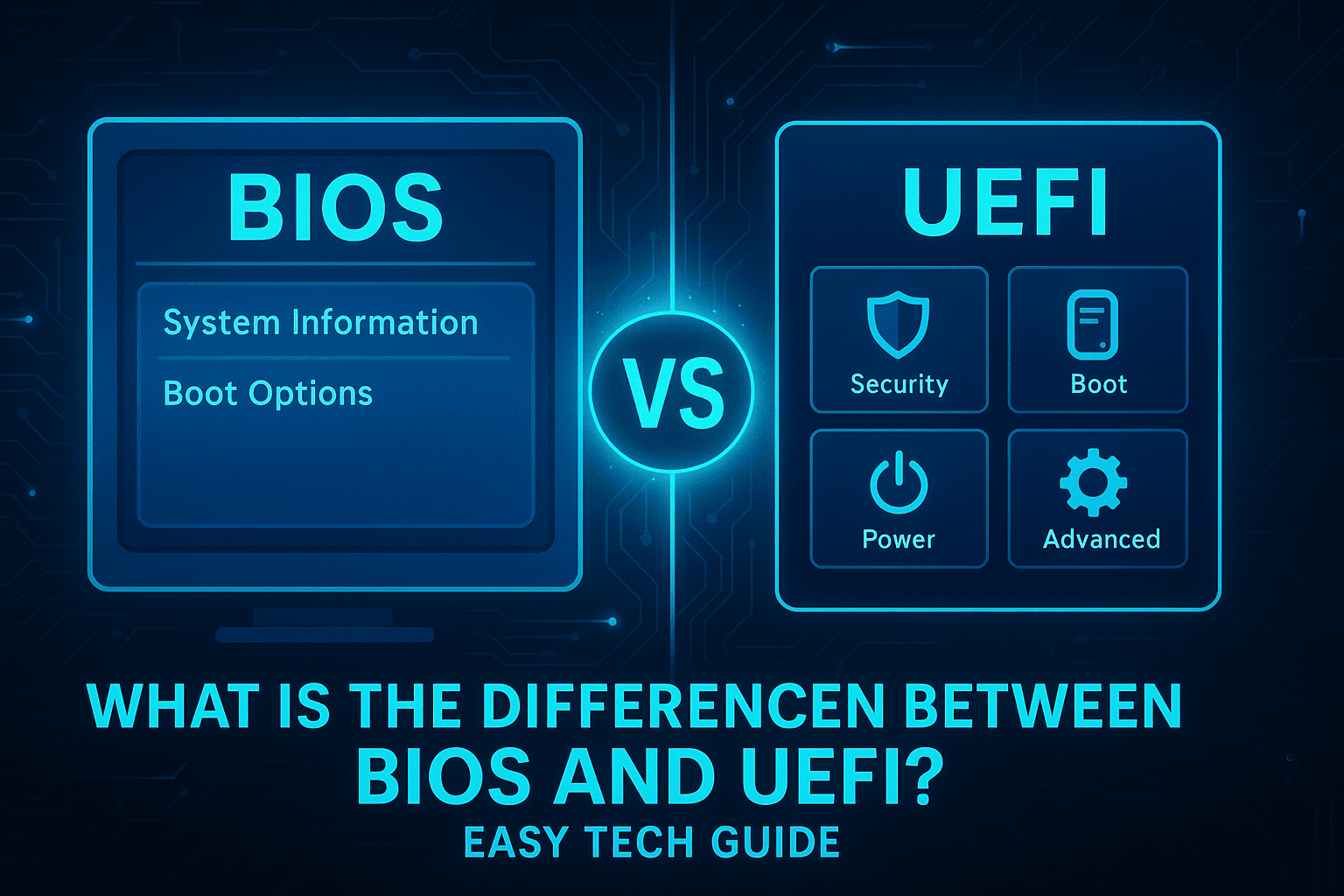
The most basic component of firmware comes to life at the core of any computer, before the operating system has even a chance to boot. For years, firmware had been BIOS and UEFI. Nowadays, there is a high possibility that it is UEFI. It is not merely tech trivia; understanding this change is essential for assembling a PC, resolving some boot issues, or even keeping your machine safe and up to date. These are the key technologies that we should demystify.
Introduction: What is BIOS?
The old guard is BIOS (Basic Input/Output System). BIOS is the first code to be executed when you switch on your machine since the time of the first IBM PC in the 1970s.
Its job is crucial but simple:
Power-On Self-Test (POST): A test that verifies the functionality of your hardware (CPU, RAM, drives).
Hardware Initialisation: It is the wake-up and system component identification.
Bootstrapping: It locates a bootloader on a storage drive (based on the MBR (Master Boot Record) partition scheme) and transfers control to start your OS.
BIOS is installed on a tiny chip on your motherboard and is very limited, which would become an issue in the modern era:
- It works in a primitive 16-bit mode that restricts access to system memory.
- It can only boot drives less than 2.2 TB.
- It is clunky, with a text-only interface and keyboard-only controls.
- Its MBR scheme supports four primary partitions.
What is UEFI? The Modern Successor.
The contemporary alternative is UEFI (Unified Extensible Firmware Interface). It was created in the middle of the 2000s to overcome the limitations of the BIOS and, in effect, is a bare-bones, full-fledged operating system running in your firmware.
- Consider the difference this way: UEFI is a multi-room house with better utilities and security, while BIOS is a small one-room cabin.
- The main strengths of UEFI are transformational:
- User Interface: It is entirely graphical, mouse-controllable, and multi-lingual. Other manufacturers even consider adding applets and simple tools to the UEFI setup.
- Lower Boot Times: It can boot multiple hardware devices concurrently and does so more effectively than the bootloader-finding process in other operating systems. Most importantly, it offers more than optional Fast Boot support that does not run unnecessary checks.
- Massive Drives Support: UEFI can implement the GPT (GUID Partition Table) scheme to boot out of drives with theoretically unlimited size: 9.4 zettabytes -another standard of the future.
- More Partitions: GPT supports 128 primary partitions per drive in Windows.
- Better Security: This is one of the key ones. Secure Boot is a UEFI option that ensures that only trusted software is executed by blocking the hijacking of the boot process by malware (or other unsigned OS loaders).
- Networking: UEFI may include network drivers, enabling features such as remote troubleshooting or internet-based operating system installation.
Head-to-Head: BIOS vs. UEFI Comparison Chart
| Feature | Legacy BIOS | Modern UEFI |
|---|---|---|
| Interface | Text-only, keyboard navigation | Graphical, mouse, and keyboard support |
| Boot Mode | 16-bit processor mode | 32-bit or 64-bit mode |
| Partition Scheme | Master Boot Record (MBR) | GUID Partition Table (GPT) |
| Max Drive Size | 2.2 Terabytes | 9.4 Zettabytes (practically unlimited) |
| Max Partitions | 4 Primary partitions | 128 Primary partitions |
| Boot Speed | Slower | Faster (especially with Fast Boot) |
| Security | Minimal or none | Secure Boot (blocks unauthorised bootloaders) |
| Network Support | Not typically present | Often available for remote diagnostics |
The Critical MBR vs. GPT Difference.
It is here that the rubber hits the road for users. Your firmware determines the disk partition style. BIOS uses MBR. The Master Boot Record is a very small (512-byte) sector at the beginning of a drive. It contains boot data and partition data. It has direct limitations (2.2 TB, 4 partitions) that are directly related to the BIOS.
UEFI uses GPT. A modern standard is the GUID Partition Table, which stores partition data across the drive. It is stronger, can have massive sizes and partitions, and includes a cyclic redundancy check (CRC) to protect data integrity.
Modern OSes cannot be installed in UEFI mode on an MBR disk, or in Legacy BIOS mode on a GPT disk. They are paired systems.
Is My Computer BIOS and UEFI-Based? (How to Check)
On Windows:
- Windows Press Windows Key + R, type msinfo32, and press Enter.
- Search in the System Information window for BIOS Mode.
- It will either be Legacy (BIOS) or UEFI.
On a Mac, UEFI has been used on all Intel-based Macs (since 2006). The current but similar technology is used in Apple Silicon Macs.
Which One Should You Use? Practical Advice
You almost always want UEFI. It is the standard of all the modern systems (Windows 8/10/11, modern Linux distros, macOS). This is a decisive advantage in terms of speed, security, and support for large hardware.
Legacy BIOS/CSM mode can only be used due to the following reasons:
- Installing an older operating system (e.g., Windows 7 with no specific drivers, or older versions of Linux distros).
- Rebooting of ancient hardware or drives that do not support UEFI.
- On a drive that is already formatted in MBR, you do not want to convert (which requires a data backup).
- Secure boot: UEFI is a requirement to install Windows 11 (new) version.
Important Considerations for Enthusiasts
CSM (Compatibility Support Module): An option in UEFI firmware that emulates a Legacy BIOS. It allows booting older MBR disks in a new UEFI system. To achieve maximum performance and security, you should set CSM off in your UEFI settings when you are sure that all your drives and OS are configured to use BIOS and UEFI.
Dual-Booting: UEFI mode is still advised if you want Linux and Windows running on a relatively contemporary computer. Make sure the Linux distribution you choose supports UEFI and Secure Boot (most popular distributions, such as Ubuntu and Fedora, do).
MBR to GPT: It is possible to convert the disk format from MBR to GPT without losing any data using Windows’ default MBR2GPT.EXE utility (run in Windows PE/WinRE command line) or third-party utilities, though always save your data first.
Final Summary: BIOS vs UEFI Difference
BIOS had served as the dependable foundation of computing for the last 30 years, but wear was evident. Its logical successor is UEFI, which is suited to the times of terabyte drives, speedy boot sequences, and hazardous security risks. You have interacted with UEFI when assembling, purchasing, or debugging a computer in the past 10 years.
Coupled with familiarity with its capabilities, most notably the benefits of GPT partitioning and Secure Boot, you will be able to ensure that your system is optimally configured to perform efficiently now and in the future, as well as to achieve maximum security.